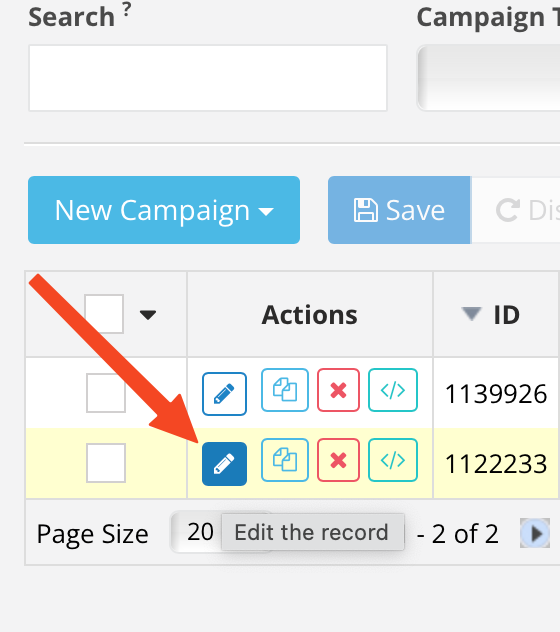
Go to your account and press edit the record which actually means edit the campaign.
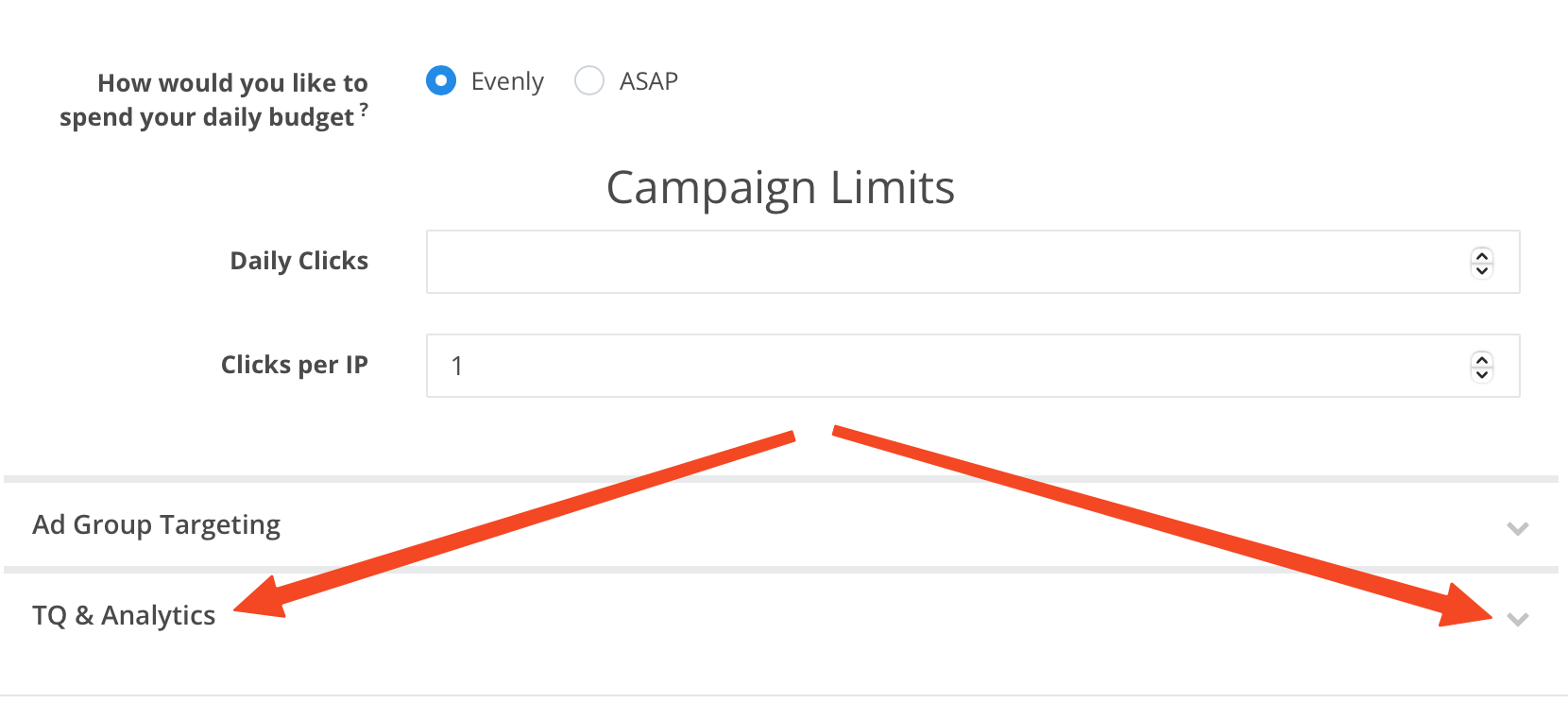
Now go to the TQ & Analytics section and click on the checkbox to expand the list of available options.
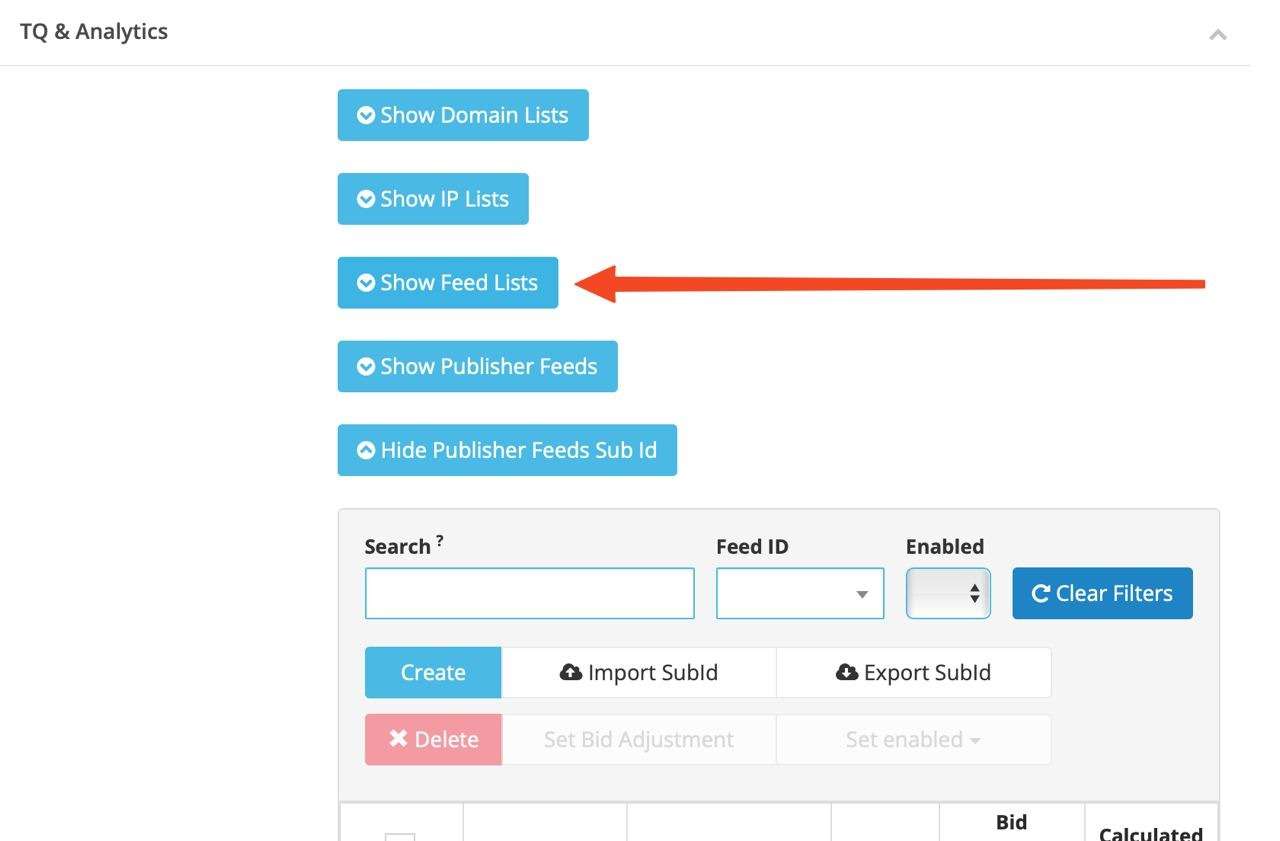
In the opened list of options, select the Show Feed lists option.
Now hover over the appeared field Feed List Mode and click on it to reveal the list of options. There will be exactly two. Choose the Whitelist mode.
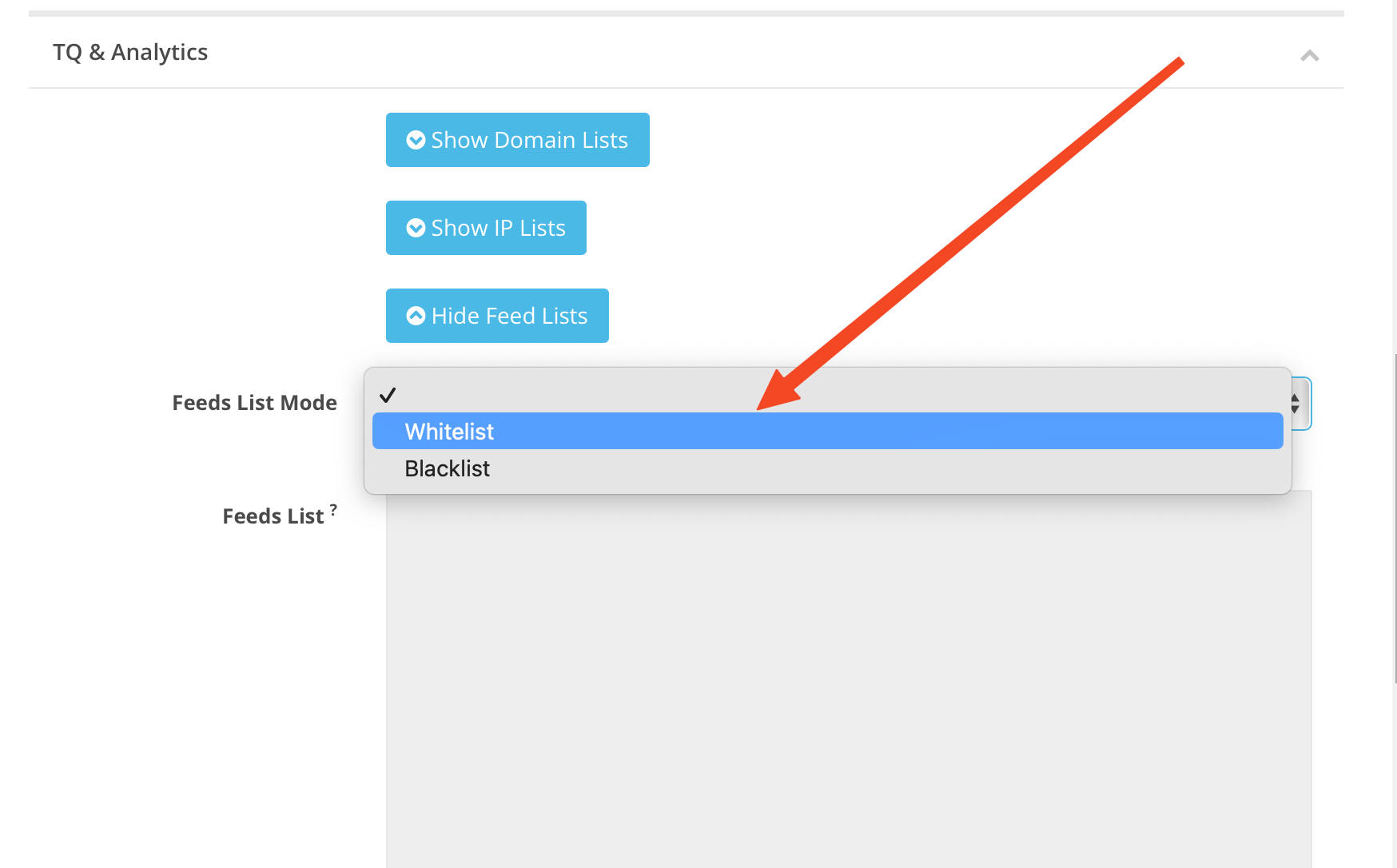
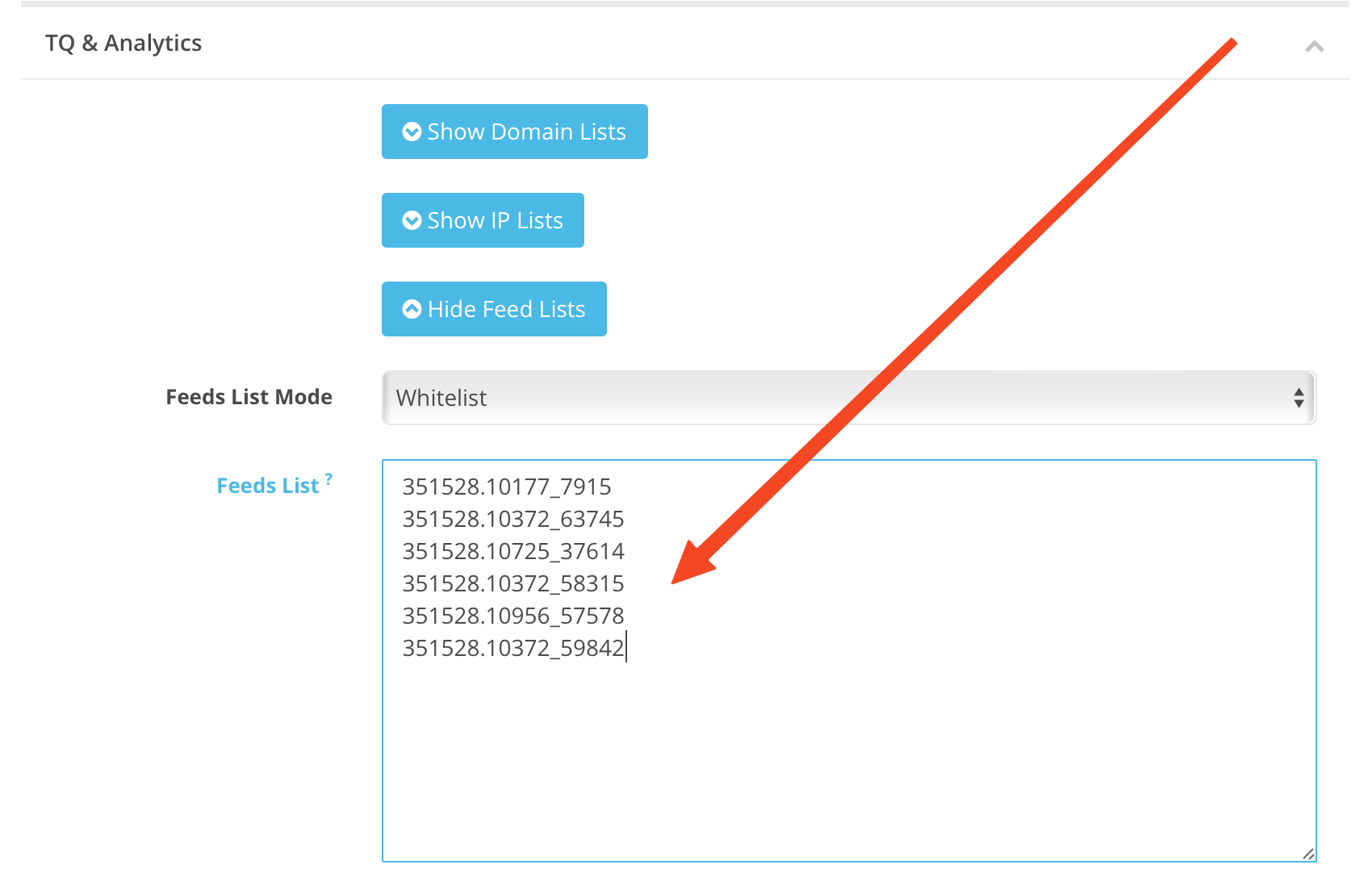
You're on target. Now you can enter the desired pubfeeds and pubfeed.subID numbers into the activated Feeds list field
Pay attention to the format, it’s super important. There should be a dot between the pubfeed number and the subID number. There can be an underscore only in the number of the subID.
Here are the Examples of how it should look like:
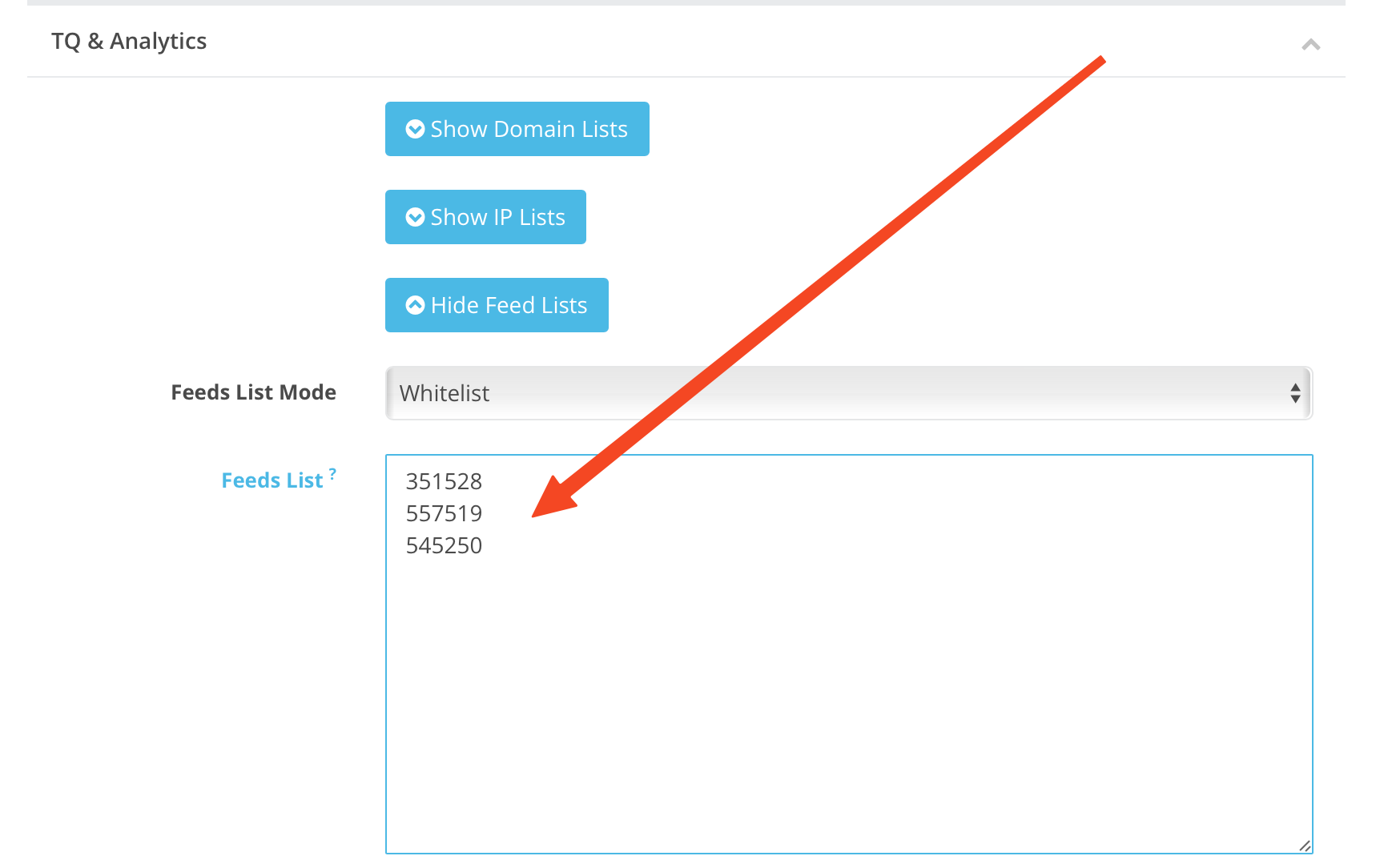
If you put only the Pubfeed ID:
If you put the Pubfeed ID + subID: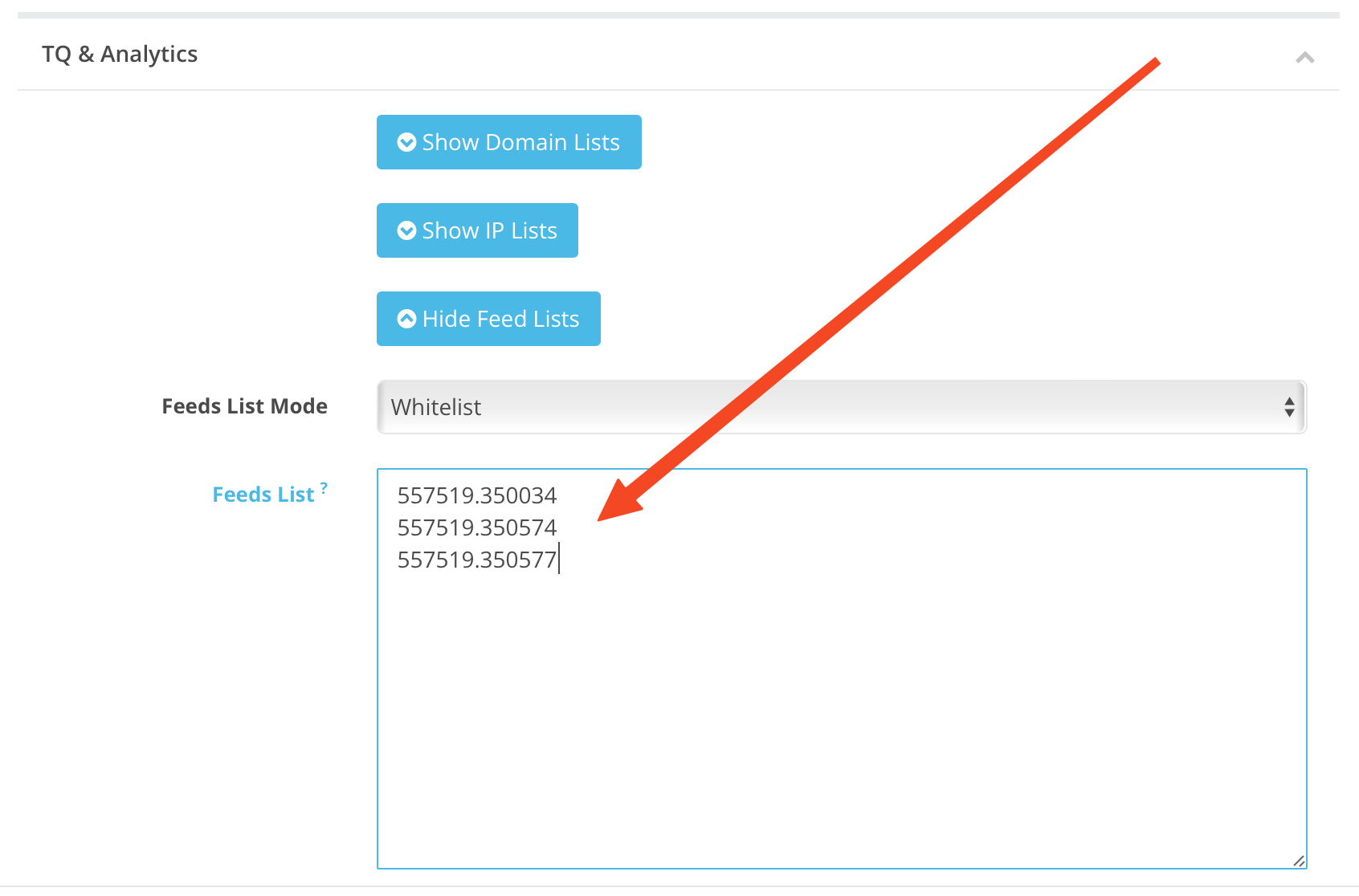
If you put the Pubfeed ID + subID_subsource: